

Data / Field notes
Connect Grasshopper to Supabase and Speckle
Move beyond temporary model data by connecting Grasshopper to persistent databases and model-sharing infrastructure.
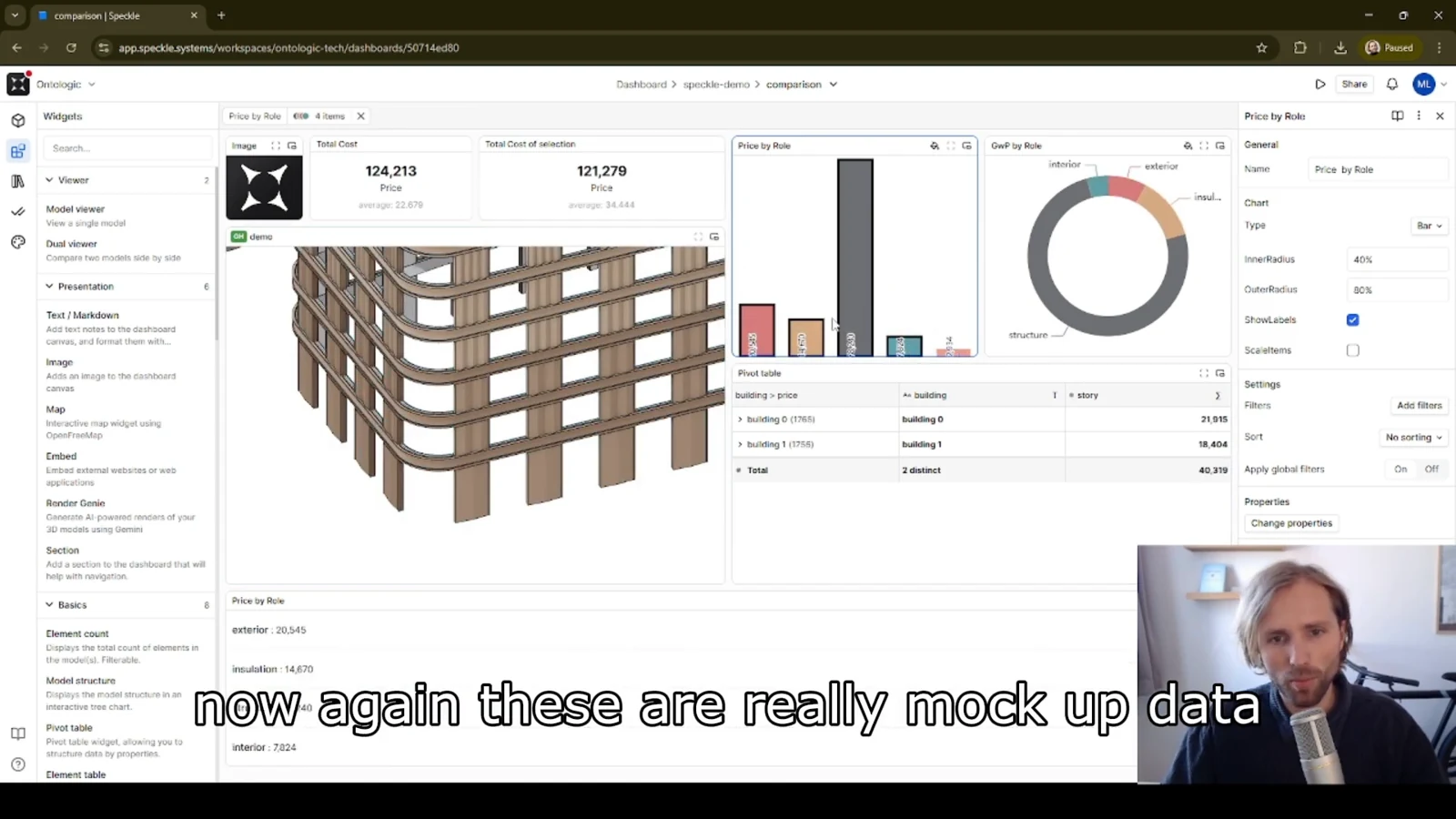
A Grasshopper session is a temporary view of a design process. When its outputs become project information, they may need to survive beyond the current model state. This video connects Grasshopper, Supabase and Speckle around that transition from generated results to persistent, shareable records.
Decide what deserves to persist
Not every intermediate result belongs in a database. Start with the information someone will need later: option identifiers, assumptions, metrics or references to a model. A deliberate record is easier to reuse than an indiscriminate dump of everything on the canvas.
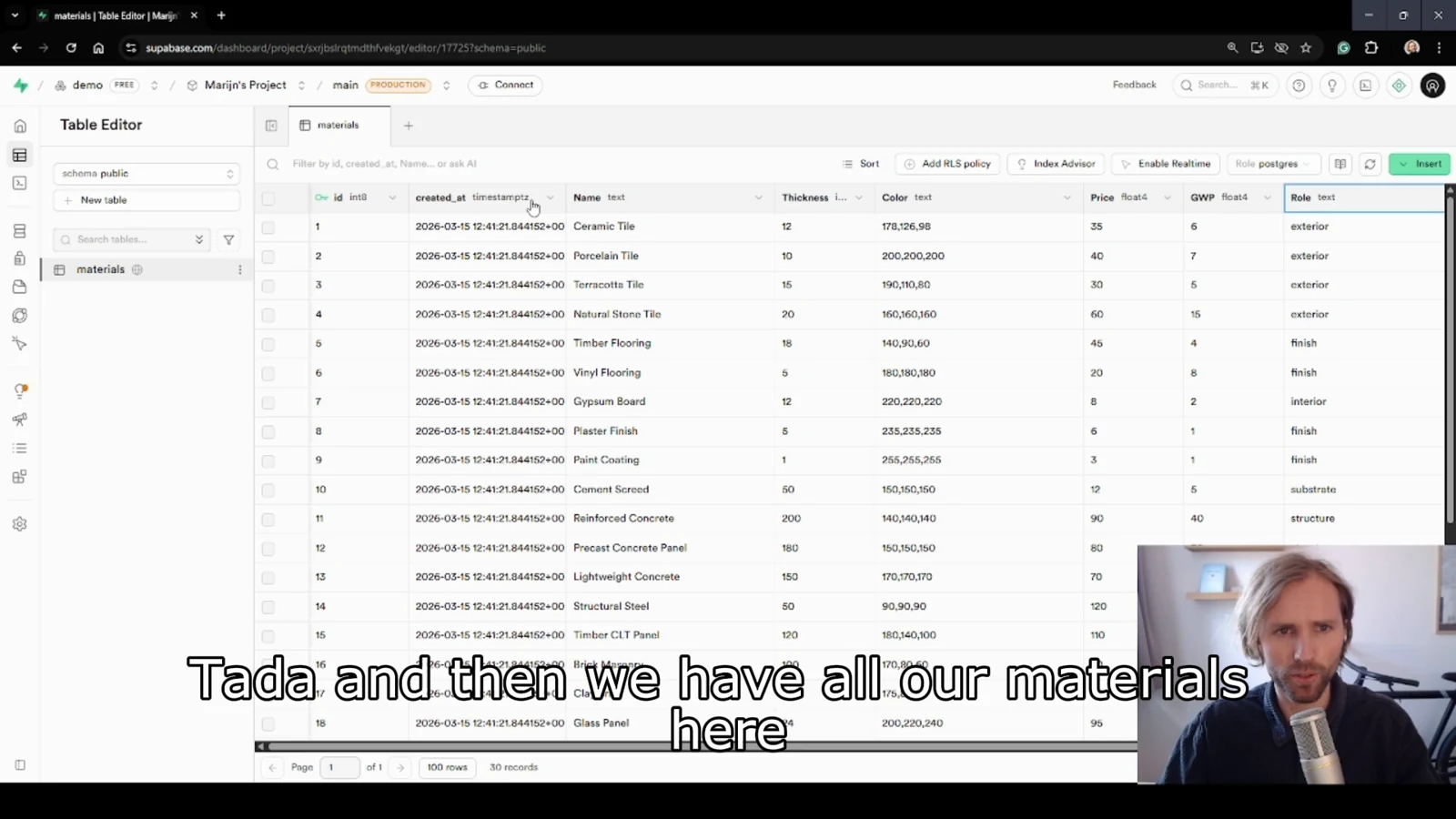
Separate an option's identity from its current values. If a record changes, a stable identifier helps another tool recognize the same option. If the goal is to preserve history, represent a new revision explicitly instead of overwriting the only copy.
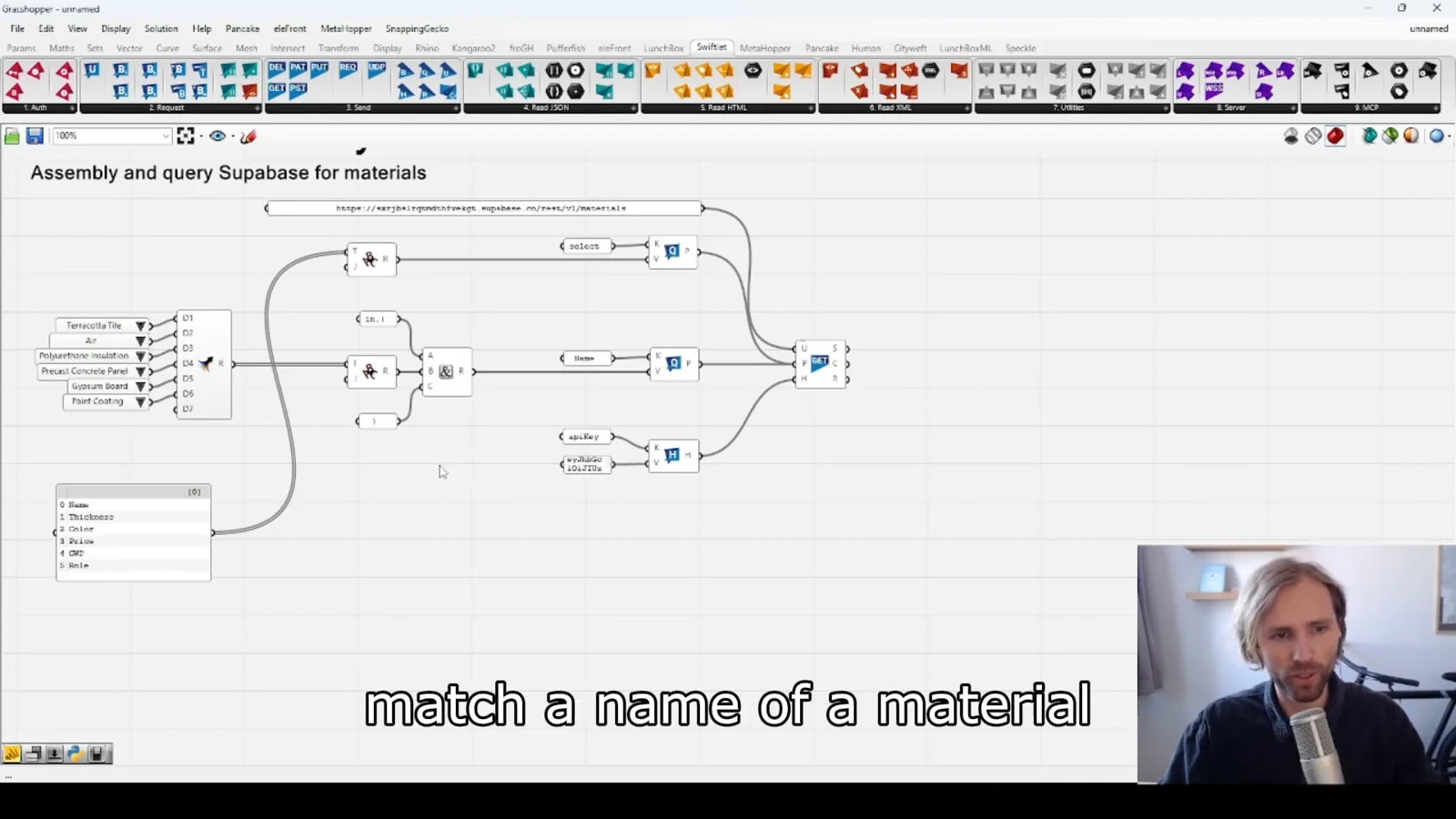
Give each system a clear responsibility
A database can hold structured records that other applications query. Speckle supports sharing model information beyond the authoring environment. Grasshopper remains the place where parametric logic produces the outputs. The useful connection is the relationship between these responsibilities.
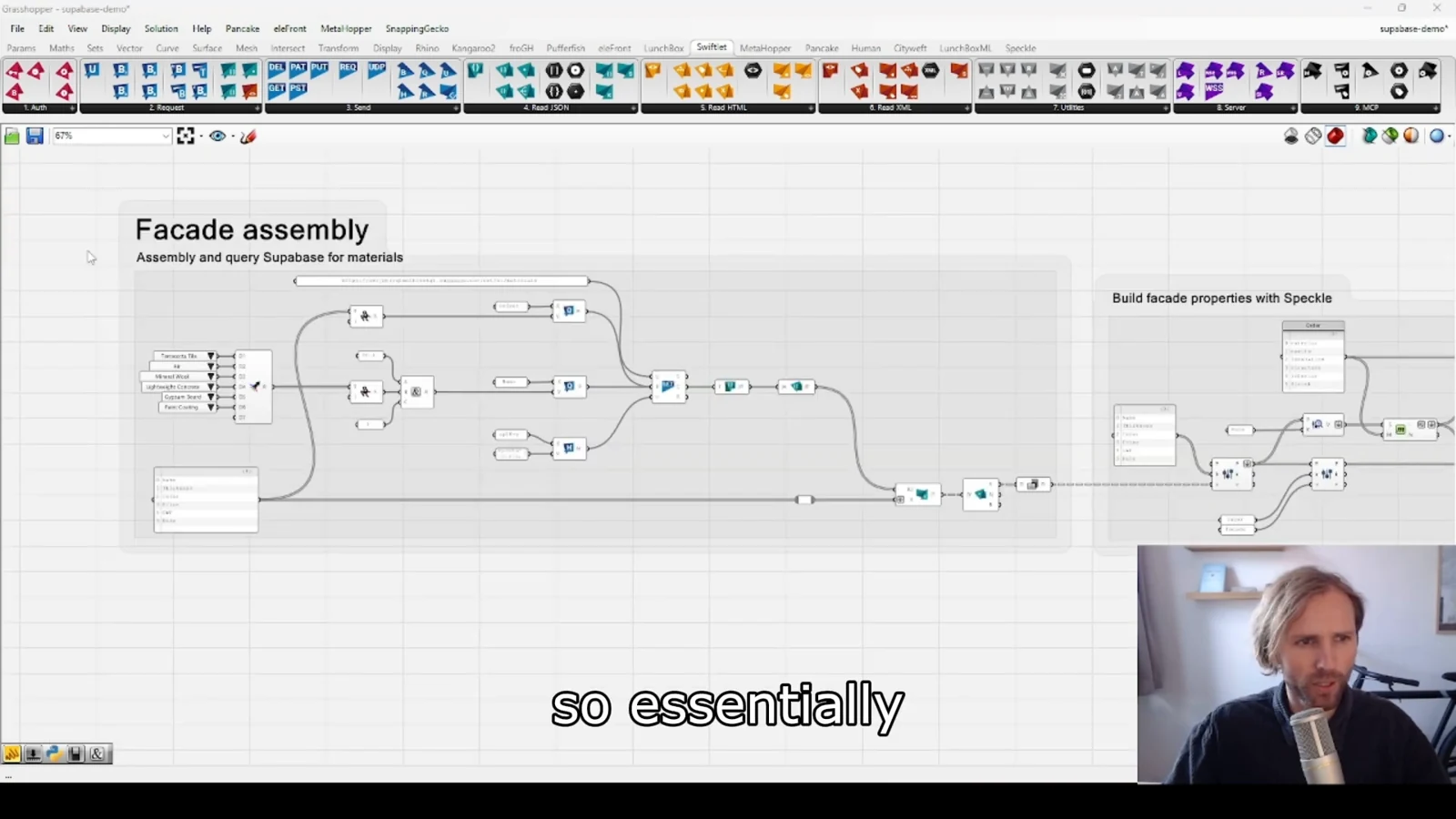
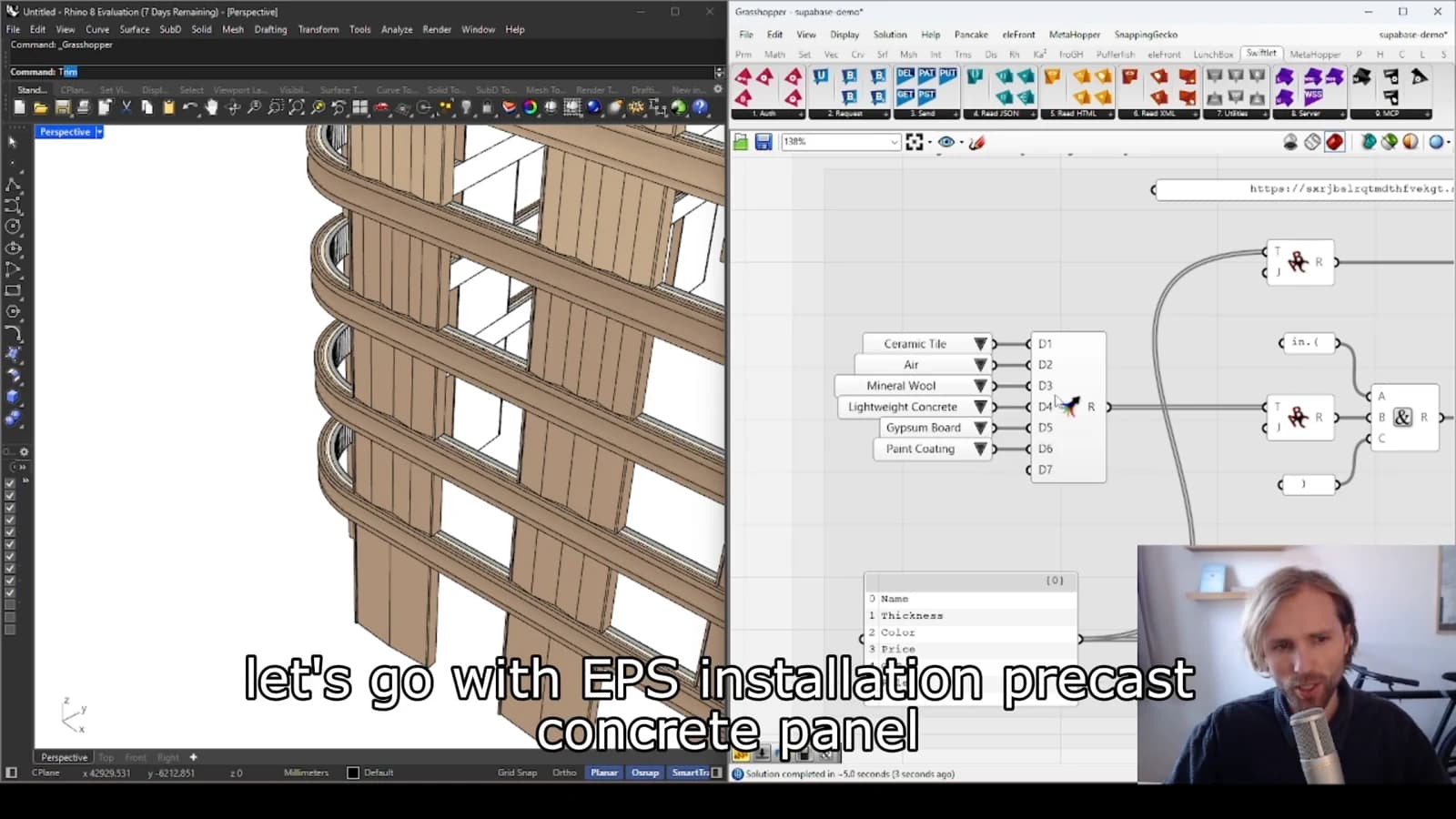
Define how a stored record points to the relevant geometry or model version. Without that connection, a dashboard can display accurate numbers for the wrong model state. Test the relationship with a small example before expanding the workflow.
Plan for incomplete updates
Publishing geometry and saving a record are separate actions. Consider what a reviewer should see if one succeeds and the other fails. Clear status information and repeatable updates make the workflow easier to recover. Persistence adds continuity, but it also creates a responsibility to keep related information consistent.
From concept to canvas
See the workflow in practice
The companion video shows the model and the workflow behind these ideas. Watch the walkthrough when you want to see how the pieces connect.
Watch on YouTube