

Grasshopper / Field notes
How to Organize Large Grasshopper Scripts
Make Grasshopper definitions more scalable, readable and reusable for real project workflows.
A large Grasshopper definition is a tool someone will need to understand again: tomorrow, at a deadline, or after a handover. Organization affects how safely that tool can change. This video looks at the structure that helps a growing canvas remain usable.
Try it yourself
Get the template in the community
Templates are hosted in Ontologic Academy on Circle. Follow the link, then sign in or create a community account to access the template and its instructions.
Organize around responsibilities
A useful definition tells a story from inputs through transformations to outputs. Group components by the job they perform, and give each region a name that explains its purpose. The goal is for a reader to locate a decision without tracing every wire on the canvas.
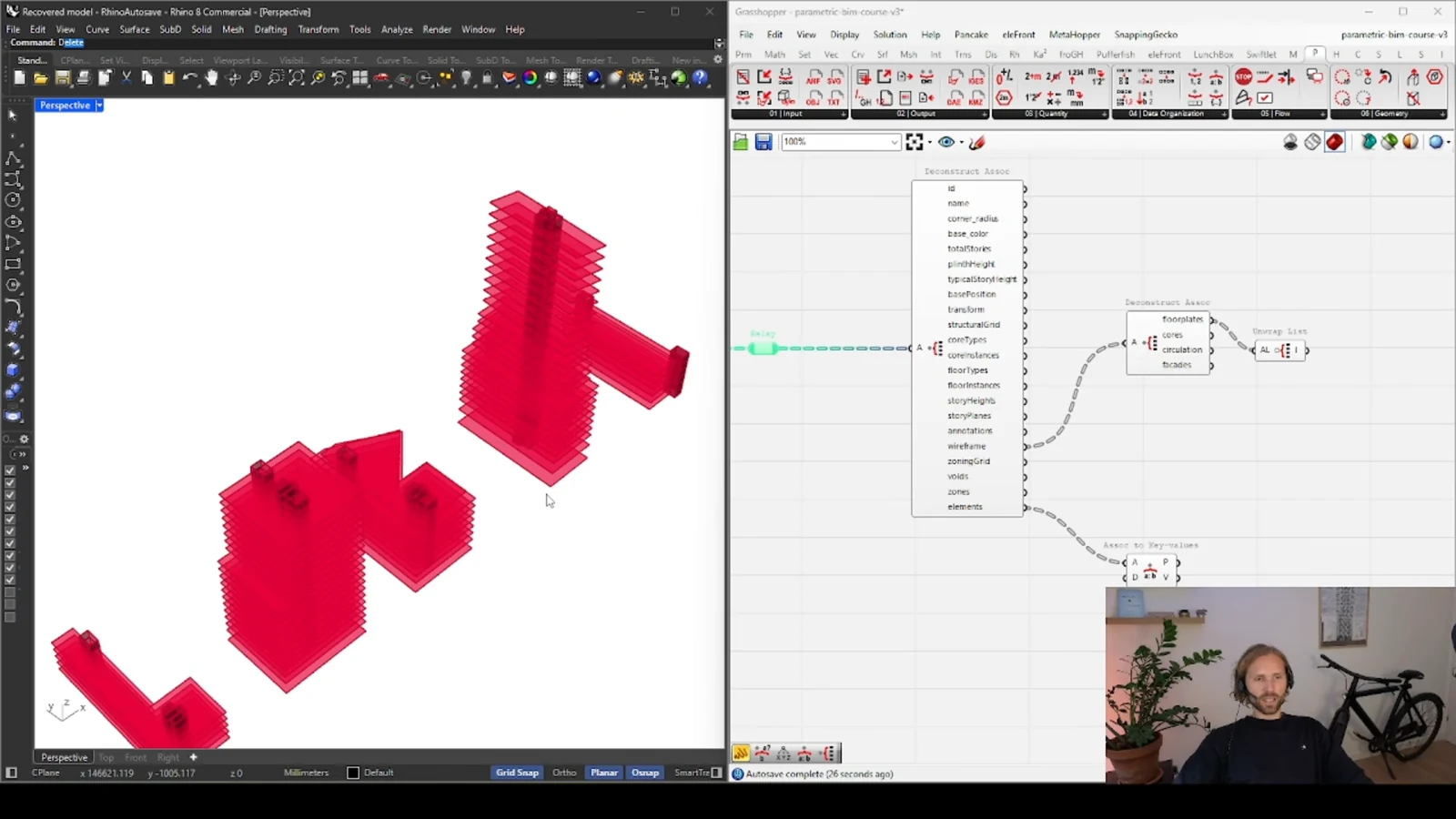
Visual neatness helps, but responsibility is the stronger organizing principle. A clean-looking group that mixes input preparation, geometry generation and export remains hard to modify. Separate those concerns so a change in one stage has a more predictable effect.
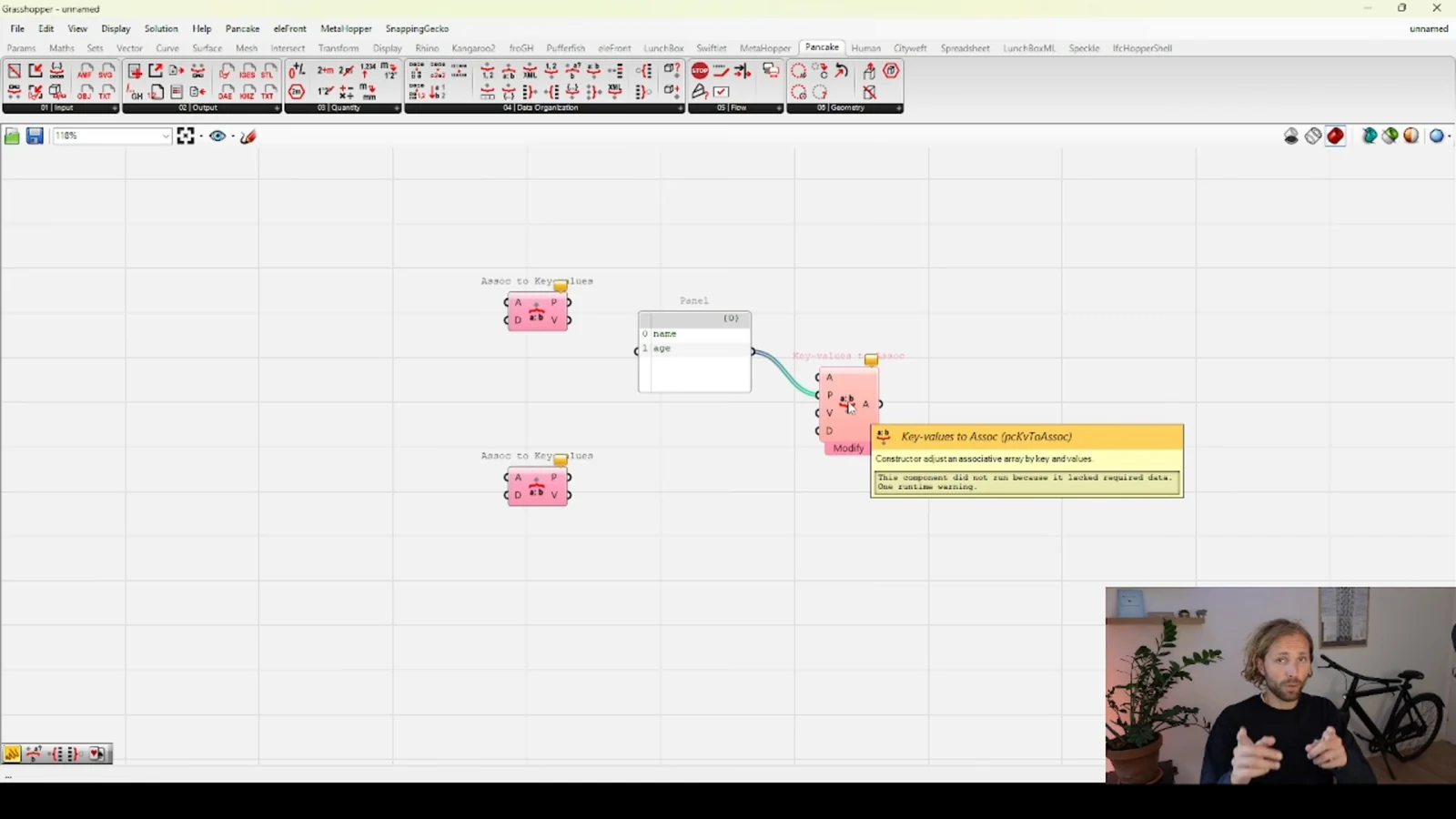
Make assumptions easy to find
Units, expected data structure and parameter limits are part of the definition's behavior. Put them near the relevant inputs or transformations. A future user should not have to infer whether a value is a distance, a count or a normalized ratio.
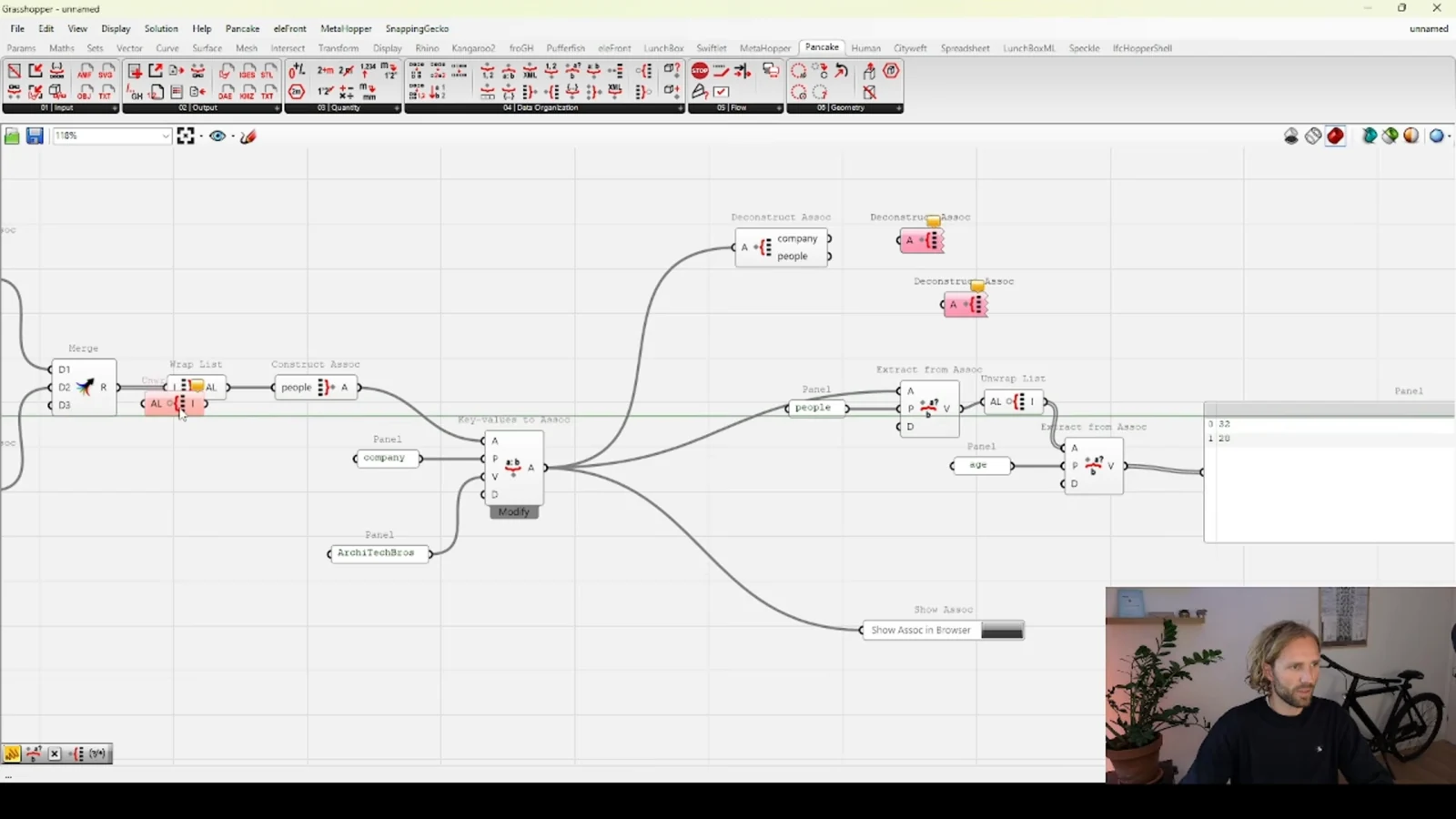
Reusable patterns benefit from the same discipline. Before turning a repeated fragment into a shared unit, identify its inputs and outputs and check that its behavior is consistent. Reuse is most helpful when it removes ambiguity as well as repetition.
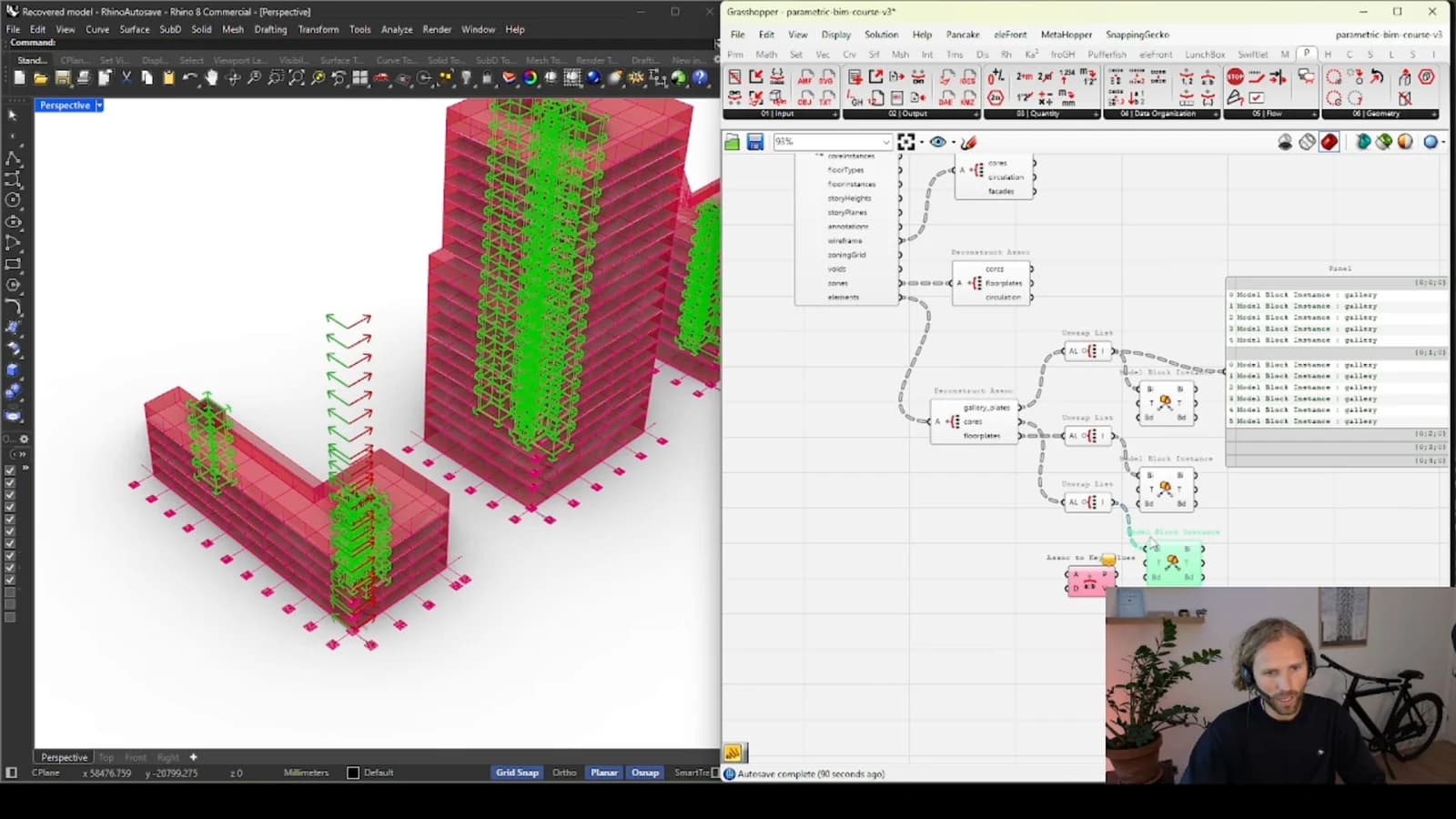
Design for the next change
Try following one output back to its source. Can you see which assumptions affect it and where to inspect intermediate data? That small exercise often reveals more than rearranging the whole canvas. A legible definition is easier to debug, teach and eventually connect to an external interface or automation tool.
From concept to canvas
See the workflow in practice
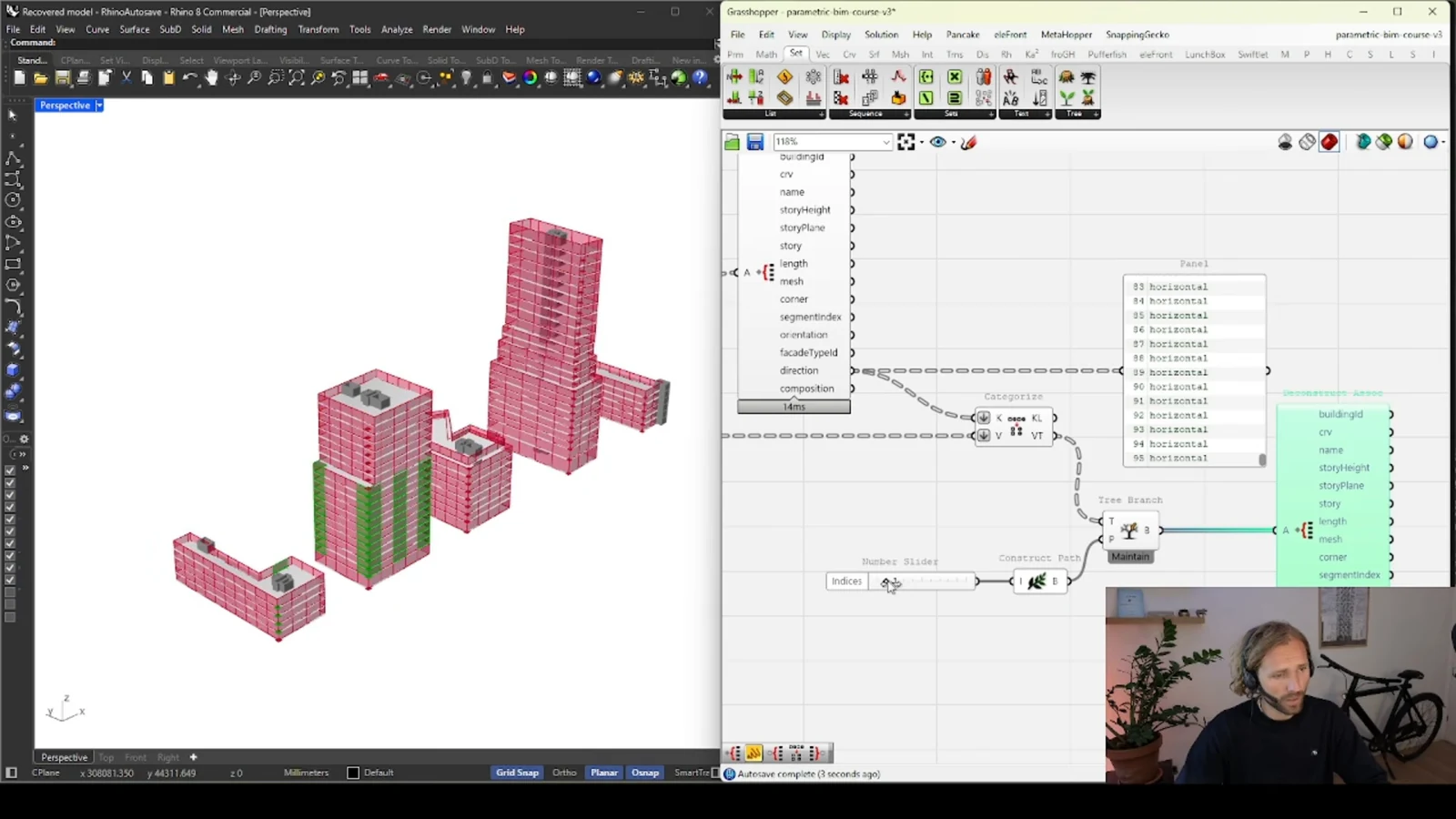
The companion video shows the model and the workflow behind these ideas. Watch the walkthrough when you want to see how the pieces connect.
Watch on YouTube